
Who Is This Automation For?
- Operations directors at nonprofits: your donor data lives in five different tools and nobody has backed up any of them since last fiscal year;
- Solo IT admins at small charities: you are the backup plan - literally - and you need something that runs while you sleep instead of you;
- Freelance consultants juggling client accounts: you manage CRM records, project boards, and databases for clients who would panic if anything vanished;
- Program managers running grant projects: your reporting data sits in spreadsheets and databases, and losing it mid-cycle means re-entering months of work;
- Startup founders with a growing tool stack: you added a CRM, then a database, then file storage, and now you lie awake wondering if any of it is backed up.
Common Use Cases
- Nightly CRM snapshots to cloud storage: every lead, deal, contact, and account record gets exported as a clean file and saved to your drive before breakfast;
- Database table dumps on a schedule: your project databases - documents, conversation logs, custom schemas - get pulled and stored as readable files;
- Automation platform self-backup: all your workflows and credential metadata get exported so you could rebuild from scratch if the server catches fire;
- File inventory across shared folders: important folders get scanned each night and a manifest lists every file, its size, and last change date;
- Clean-slate rotation to save space: yesterday's backup folder gets deleted before today's run, so you are not hoarding months of old copies in cloud storage.
How It Works
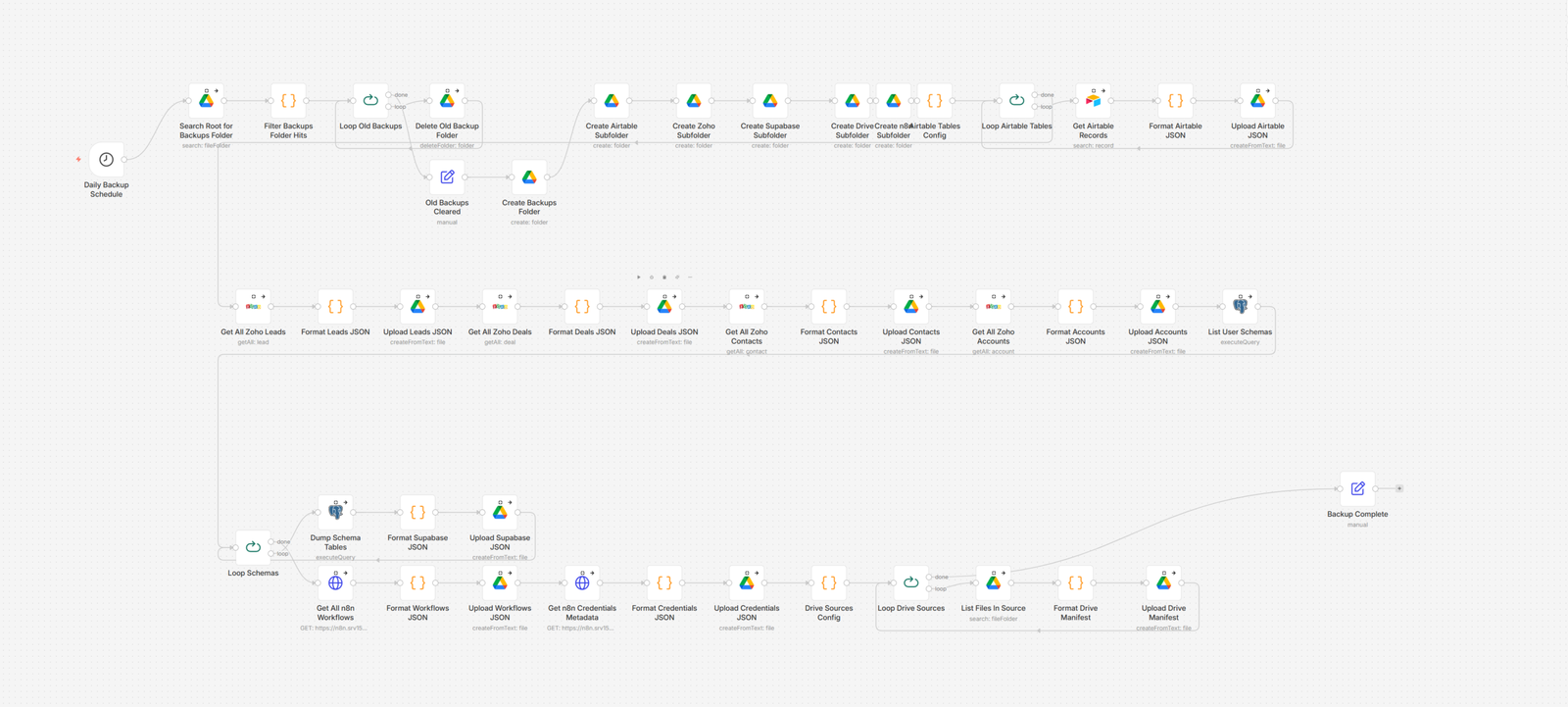
Every night at 2 AM, the automation wakes up and does some housekeeping first. It looks for yesterday's backup folder in your cloud storage. If it finds one, it deletes it. Then it creates a fresh folder with subfolders for each tool - your spreadsheet platform, your CRM, your database, your file storage, and your automation platform itself.
Next, it pulls records from your spreadsheet tables. You tell it which tables to grab, and it loops through each one, exports the data as a clean file, and uploads it to the right subfolder. Think of it as photocopying every important spreadsheet into a fireproof cabinet. Except the cabinet is in the cloud and nobody has to touch the copier.
Then it moves on to your CRM. It grabs all your leads, then your deals, then your contacts, then your accounts - one module at a time. Each batch gets formatted into a neat file with a timestamp and a record count, then uploaded. If any module comes back empty or errors out, the workflow keeps going instead of crashing.
After the CRM, it connects to your database. It finds every custom schema you have created, loops through them, and dumps the tables - documents, conversation logs, whatever you store there. Each schema gets its own set of files in the database subfolder.
Finally, it backs up the automation platform itself - every workflow definition and every credential name (not the secrets, just the metadata). Then it scans your important file storage folders and saves a manifest of what is in each one. When it is all done, it marks the run as complete. You wake up, your backups are fresh, and you never had to click a thing.
Prerequisites
You will need a spreadsheet or database platform, a CRM, a relational database, a cloud file storage service, and an automation platform.
(Spreadsheets: Airtable, Google Sheets, Notion. CRM: Zoho CRM, HubSpot, Salesforce. Database: Supabase, Firebase, PlanetScale. File storage: Google Drive, Dropbox, OneDrive. Automation: n8n, Make, Zapier.)
How to Develop Further
- Add email or chat alerts on failure: connect a notification step at the end so you get a message if any backup section returns zero records or hits an error;
- Keep multiple days of backups: swap the delete-and-recreate logic for date-stamped folders and keep a rolling week of snapshots instead of just last night;
- Include more CRM modules: bolt on extra export steps for campaigns, tasks, or custom modules so your entire CRM gets captured, not just the core four;
- Push a copy to a second cloud provider: add one upload step to a different storage service - if one provider goes down, your backups still exist somewhere else;
- Generate a summary report after each run: add a step that counts records per section and emails you a one-line-per-tool status report every morning.